Memory Manager window
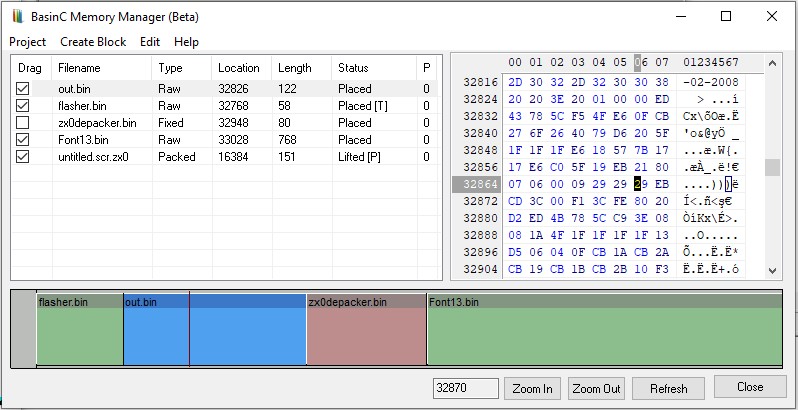
The Memory Manager is a project-wide container for assets such as sprites, code, data, and screens. It lets you organise blocks, compress them, and inject them into Spectrum memory without manual POKEs or loader routines.
Interface layout
The window is divided into three areas:
- Block List (left pane): Shows all blocks currently loaded. Columns include a checkbox to enable or disable a block, filename, type (Raw, Screen, Code, UDG, and so on), start location, length, status (for example In Mem, Packed, Modified), and page for 128k banks.
- Hex Editor (right pane): A live view of the selected block or the emulator memory. Use it to inspect bytes, copy data as text, or build a new block from a selection.
- Memory Ruler (bottom pane): A visual map of 64 KB memory. Gray areas show ROM, white areas show RAM, green blocks are placed items, blue is the selected block, and the red line is the cursor you can move by clicking or typing an address.
Status Flags
The status column in the block list displays flags indicating the state of each memory block:
- Lifted: The block is not currently in memory (default state if not Placed).
- Placed: The block is currently loaded in memory.
- [T] Tracked: Integrity checking is enabled for this block.
- [P] Compressed: The block is compressed using ZX0.
- [!] Changed: The block content in RAM differs from the stored block data (Dirty).
- [E] Export Included: The block is marked for export.
- [X] With Decoder: The block includes a decoder.
- [*] Modified: The block has been modified within the editor.
Project menu
- Open Management... Load a saved .bmm project, either clearing or appending to the current list.
- Save management as... Save all blocks, addresses, and properties to a .bmm file.
- Clear Management Remove all blocks and reset the manager.
- Export Addresses to Listing... Generate BASIC DATA lines for unchecked blocks and paste them into the BASIC editor.
- Toggle ROM View Show or hide the ROM area on the ruler.
- Hide Manager Close the window.
Blocks menu
- New... Create an empty memory block.
- New ZX0 header... Add a block containing only the ZX0 decompressor.
- Import from file... Load a binary file such as .bin or .scr.
- Grab at Cursor... Copy data from the red cursor location into a new block.
- Grab Screen Create a block with the current 6912-byte screen at 16384.
- Grab Basic Capture the current BASIC program and system variables.
- Duplicate Selected Make a copy of the highlighted block.
- Pack Compress the selected block using ZX0.
- Pack with depacker... Compress and prepend the decompression routine to make it self-extracting.
Block list context menu
Movement and placement
- Move/Insert into cursor Move the block start address to the red cursor, checking for collisions.
- Rewrite/Insert in place Re-inject the block at its current address.
- Lift Remove the block from memory while keeping it in the list.
- Insert into presets Jump to common addresses such as Auto (next free), Screen (16384), font, UDG, RAMTOP, 32768, or 49152.
Editing and tools
- Track/Untrack Toggle integrity checking for unexpected changes in memory.
- Change Type Set how the manager treats the data (Raw, Screen, Code, UDG, and similar).
- Pack Compress the block with ZX0.
- Send to... Export the block to the Binary Grabber or Binary Window.
- Cut / Copy / Paste Standard clipboard actions for blocks.
- Delete Remove the block from the project.
- Rename Change the filename or alias.
- Resize Adjust the length of the block.
- Lock/Unlock Prevent or allow modification or movement.
Hex editor and ruler context menu
- Create Block From Selected Area Turn the highlighted bytes into a new block.
- Jump to... Move the Hex Editor view to a specific address.
- Revert to Memory Reload the editor from emulator memory, discarding edits.
- Apply Edits to Memory POKE the edited bytes directly into RAM.
- Copy as Text Copy selected bytes as a hex string.
- Paste Text Paste a hex string into the editor.
Common workflows
Importing a sprite
- Choose Blocks > Import from file... and pick the sprite binary.
- Click the Memory Ruler to place the red cursor.
- Right-click the block and choose Move/Insert into cursor.
Compressing data
- Select a block and use Pack.
- Confirm the status changes to Packed and the length shrinks.
- Use Export Addresses to Listing if you need BASIC DATA for your decompressor.
Saving a session
- Go to Project > Save management as....
- All block states, addresses, and data are stored in the .bmm file.
Fine-tuning positions
- Select a block and type an address into the address box.
- Press Enter to move the block; use Shift and drag on the ruler for byte-accurate placement.